Reviving 100+ page user documentation

I updated two outdated sources of information into one authoritative document, usable for the multiple audiences that use the Oppia platform.

The problem

Oppia originally used two separate documents, the User Guide and User Documentation to help different roles create, maintain, or use the content on their platform, which can lead to confusion, mismanagement, and difficulty adding future updates. In addition, both documents are 3+ years out-of-date. There are missing features, new flows, entire new pages that are not reflected in either current documents.

Project overview

  1. I created a chart that demonstrated what content was in either document (either one contained it, the other not, both contained relevant content, or no relevant content available)

  2. Using this chart, I created an outline of what this new user documentation should look like and brought all content into one document.

  3. Another UX Writer and I edited the content while replicating the flows on the platform to ensure all updates were included

  4. Re-organized content based on who would be using the content.

Role

UX Writing Lead

Team

2 UX Writers

Platform

Web

Timeline

5 months

1

Impact

Updated 100+ pages of content

2

Impact

Improved usability through IA and technical writing standards.
Role

UX Writing Lead

Team

2 UX Writers

Platform

Web

Timeline

5 months

1

Impact

Updated 100+ pages of content

2

Impact

Improved usability through IA and technical writing standards.
Role

UX Writing Lead

Team

2 UX Writers

Platform

Web

Timeline

5 months

1

Impact

Updated 100+ pages of content

2

Impact

Improved usability through IA and technical writing standards.

Lesson building content

Lesson building content

The clearest and most tangible way to improve the technical documentation is to update, re-organize and clean up the clutter on the most fundamental aspect of the internal documentation at Oppia: building lessons.

Current lesson content is confusing and scattered

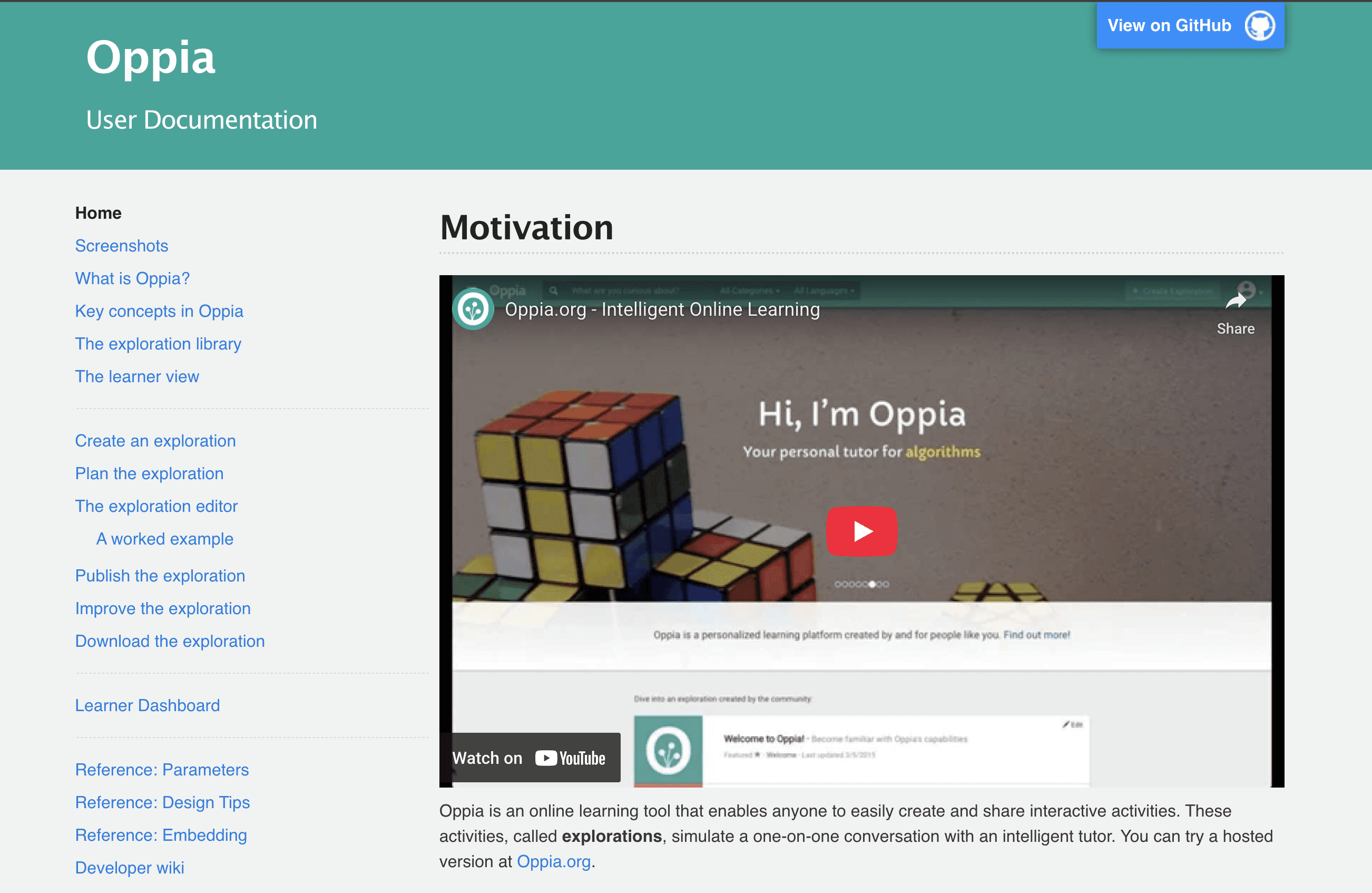
Currently there are two seperate sources of truth each with competing goals and information. The first is referred to as the User guide, the second is left untitled (I will refer to it as user documentation).

User guide content

How to:

  • Access the Exploration Editor

  • Write an introduction

  • Create cards (the building blocks of each lesson)

  • Edit and publish a lesson

User documentation content

User doc content

How to:

  • Create a lesson plan

  • Access the Exploration Editor

  • Identify the four parts of a card (the building blocks of each lesson)

  • publish a lesson

Key takeaways

Current documentation contains:

  • Repeated content (publishing a lesson, accessing the Exploration Editor)

  • Incomplete content (Identify the four parts of a card)

Updated lesson content is unified and authoritative

Now, there is one authoritative content with all relevant information, updated to reflect the current platform.

User documentation

How to:

  • Plan lesson content

  • Create an introduction

  • Create a new card

  • Build lesson cards

  • End a lesson

  • Publish and save a lesson

Key takeaways

Updated documentation contains:

  • Updated content (all content was updated, re-organized, and re-written)

  • Combined content (publishing a lesson, accessing the Exploration Editor)

  • Added relevant information (across all entries)

Content comparison

Here are a few sample excerpts from both the current and new versions:

Content before

An excerpt from the current entry on adding an interaction:


  1. Click the +Add interaction/End Exploration button.

  2. The Choose Interaction pop-up box appears. Click on the desired interaction which will bring up the Customize Interaction box. The customization options will depend on the type of interaction chosen. In the example below, we have selected the Multiple Choice interaction.

  3. When you have finished customizing the Interaction, click on the Save Interaction button.

Adding interactions:


  1. Click the +Add interaction/End Exploration button.

  2. The Choose Interaction pop-up box appears. Click on the desired interaction which will bring up the Customize Interaction box. The customization options will depend on the type of interaction chosen. In the example below, we have selected the Multiple Choice interaction.

  3. When you have finished customizing the Interaction, click on the button.

Content after

User doc content

An excerpt from the updated entry on adding an interaction:


  1. Select the card you would like to add an interaction to

  2. Under the Interaction panel, select +Add interaction

  3. Select the interaction that best fits the card. This opens the Customize Interaction panel.

  4. In the Customize Interaction panel, edit properties to match the question you are asking. For example, in a multiple choice interaction you can edit each option and choose the number of options.

  5. When you’re done, select Save Interaction. This will take you to the Responses panel.

An excerpt from the updated entry on adding an interaction:


  1. Select the card you would like to add an interaction to

  2. Under the Interaction panel, select +Add interaction

  3. Select the interaction that best fits the card. This opens the Customize Interaction panel.

  4. In the Customize Interaction panel, edit properties to match the question you are asking. For example, in a multiple choice interaction you can edit each option and choose the number of options.

  5. When you’re done, select Save Interaction. This will take you to the Responses panel.

Challenges + Solutions

1

Challenge

How do we combine two seperate sources of truth?

Solution

I created a system to label overlaps and gaps in content
  1. Created a spreadsheet labeling which entries are relevant, irrelevant, incomplete, or duplicated. I also included actionable advice to fuel the direction for the entry.

  2. Labeled and assigned remaining entries across myself and other writer.

2

Challenge

How to we ensure the content is updated efficently and accurately?

Solution

I created a checklist to track granular progress of each entry and project checkpoints
  1. Designed and implemented a new style guide specific to this project revolving around technical writing standards.

  2. Each entry had its own checklist and requirements to meet a certain standard including insuring all content was updated, abided by the technical writing style guide, and was edited by both myself and the other writer.

1

Challenge

How do we combine two seperate sources of truth?

Solution

To combine the two sources of truth I created a detailed system to label overlaps and gaps in content and track progress

Davishedrick.com

Davishedrick.com

Davishedrick.com